Here is a quick guide on how to setup OpenBSD bare metal without a wired internet connection (aka. using wifi).
Some things I found a bit tricky to get working; so its mainly documented for lookup purposes.
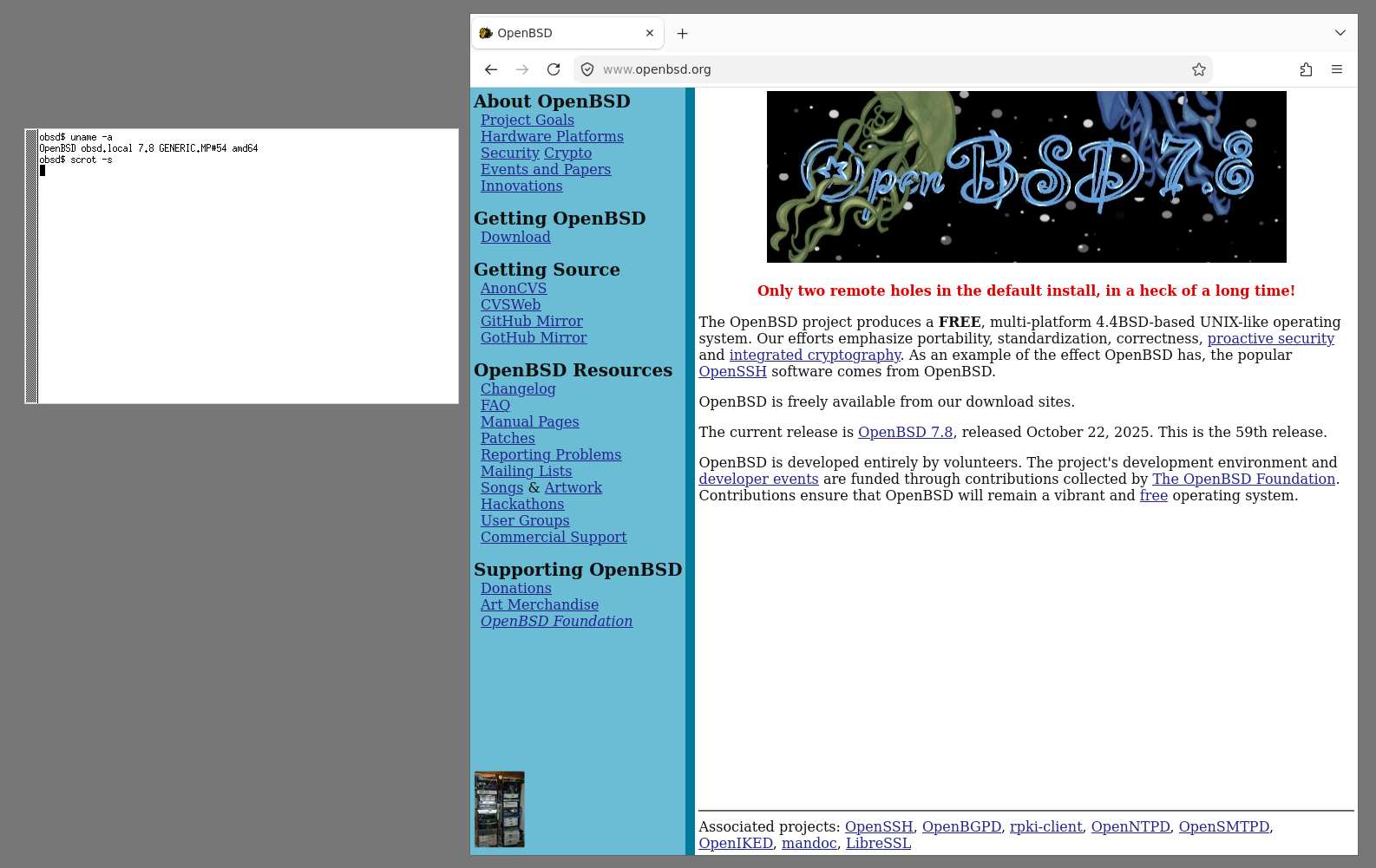
OpenBSD 7.8: XTerm & Firefox in CWM
Table Of Contents
Prerequisites
BSD’s (especially OpenBSD) don’t come with all the drivers installed by default. I struggled with this chicken-egg problem coming from Linux.
The solution is to install the base system from disk and then configuring the network interfaces afterwards (after installing the required firmware using fw_update). Note: This still requires you to have a compatible wifi
card (and thus a driver). A list of hardware/drivers for OpenBSD can be found here.
My wifi card uses the ax210 chipset which is supported by the iwx driver.
You’ll also want to have a USB thumb-drive that has the OpenBSD installer on it.
I am using Linux (Arch btw.) to setup the install medium; if your are coming from MacOS or Windows, the process might be different.
Bootable USB drive
Create a OpenBSD installer on a USB thumb-drive.
Download the latest image from their site; select your preferred mirror.
Use dd to burn the image onto the USB drive (sdX is your specific drive):
sudo dd if=install78.img of=/dev/sdX status=progress
Fimware
As you won’t have an internet connection, the automatic firmware install will fail. To install the missing modules afterwards, we will download the required firmware and load it onto another USB drive:
wget -r --noparent 'http://firmware.openbsd.org/firmware/7.8/'
Now copy the downloaded contents (firmware.openbsd.org/) onto your USB drive—mine is mounted on /mnt/:
sudo cp -R firmware.openbsd.org /mnt/
OpenBSD Installer
This is a straight forward step. Just follow the instructions. When asked about the setup of the network interface (e.g. iwx0), just skip it with entering done. When getting prompted about the location of sets type disk; when asked if the disk is mounted, enter no. For the next prompt select the USB drive the installer is located. OpenBSD will automatically find the sets on there and install them.
Post Installation
Lets hope you have been successfully guided trough the installation process by the OpenBSD installer!
Firmware installation
With the base system installed, you can now insert the USB drive with the copied firmware. Mount it to the machine (in this case the firmware USB drive is /dev/sd2i):
sudo mount /dev/sd2i /mnt
To install the firmware, use:
fw_update -p /mnt/firmware.openbsd.org/firmware/7.8/
Do a quick reboot.
Connect to Wifi
Lets start the required interface (iwx0):
ifconfig iwx0 up
Now we will connect to our home wifi. But before we can do that, we need to write a interface configuration first. In this case we edit the /etc/hostname.iwx0 file1:
nwid <wifi_ssid> wpakey "\\$yoursuperSecretPW1"
inet autoconf
Note: Special characters like $ in this example have to be escaped using \\.
Connect the wifi:
sh /etc/netstart iwx0
If your configuration is correct—you are connected to your wifi allowing you to ping a website for testing:
ping openbsd.org
Setup a User and Password
It is best practice to also setup a non-root user for day-to-day usage:
useradd -m <username>
Set a password for your newly created user:
passwd <username>
Setup Doas
doas is BSD’s equivalent of sudo. It allows you to run commands as root. This comes in handy if you want to install packages with your non root user.
You’ll need to first setup the doas configuration in /etc/doas.conf:
permit persist :wheel
This allows users of the wheel group to run commands as the root user. Now add your non-root user to the wheel group:
doas usermod -G wheel <username>
That’s it with this brief OpenBSD guide, Happy Hacking!
OpenBSD, FAQ Networking – DHCP Client, https://www.openbsd.org/faq/faq6.html [Fri Apr 3 05:01:28 PM CEST 2026] ↩︎